










What the integration does
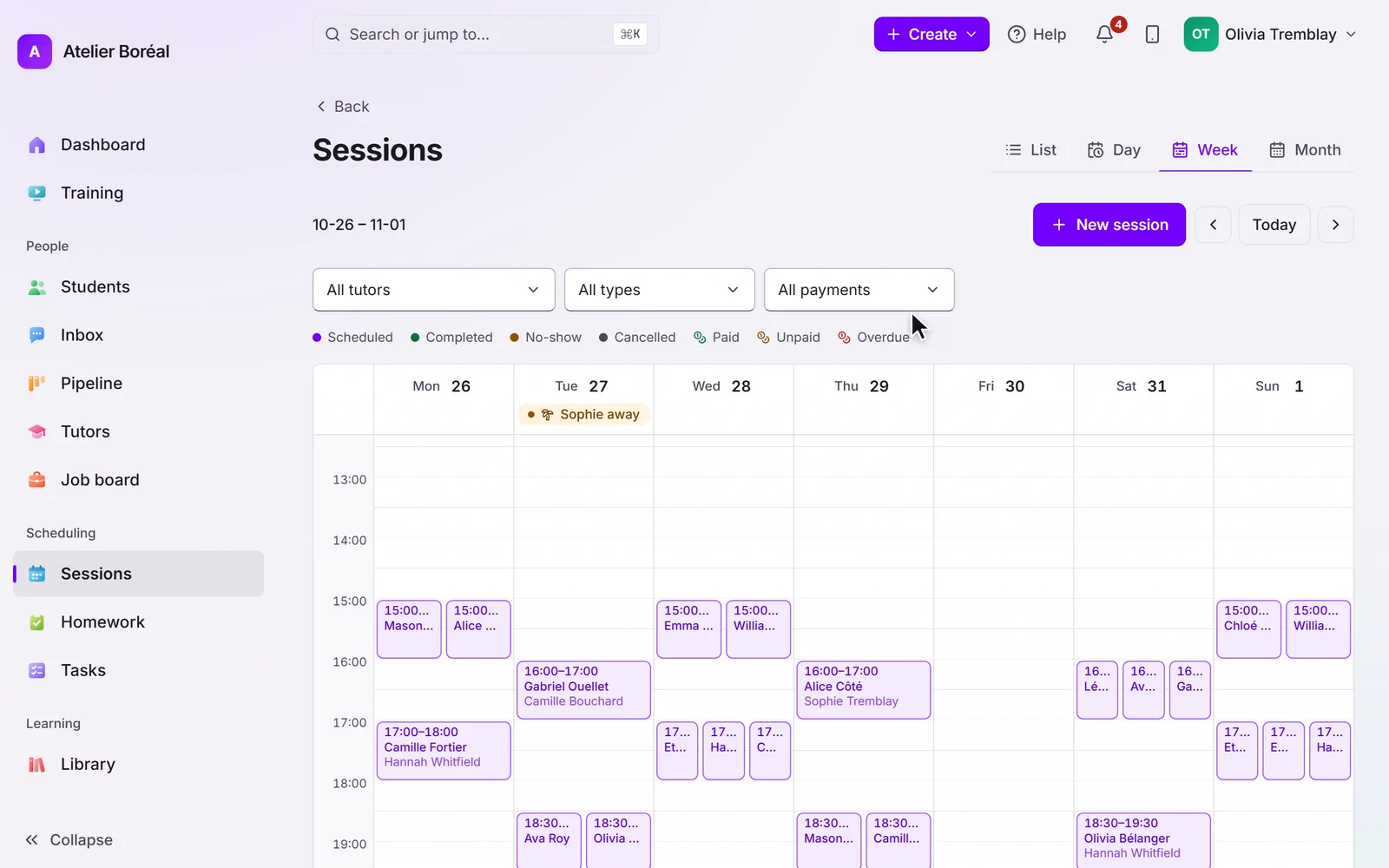
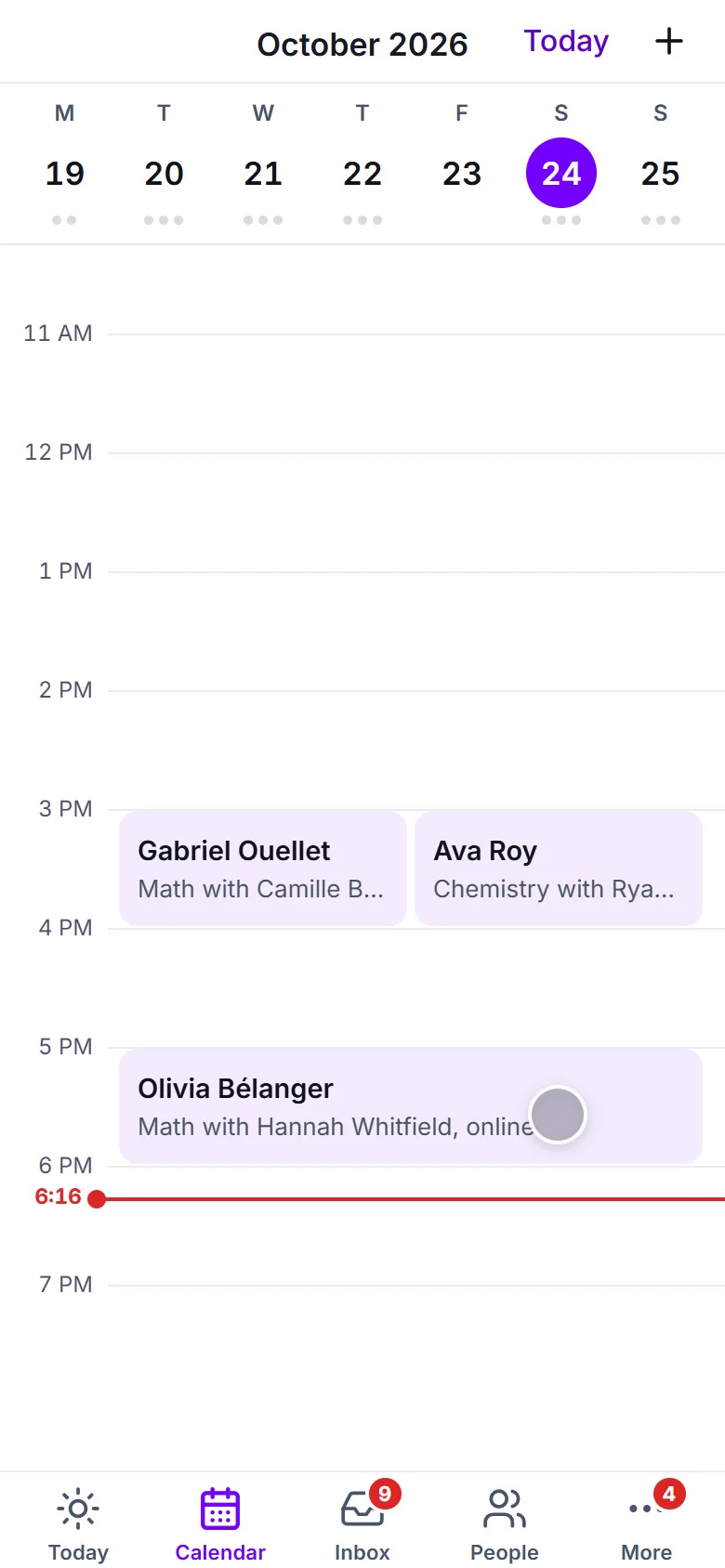
Pillar OS creates a Zoom meeting for each scheduled tutoring session on your own Zoom account. The join link is shared with both sides automatically: families see it in their portal and in session reminders, tutors see it on their schedule. Nobody copies links between apps.
Adding the app
Sign in to Pillar OS as an administrator and open Settings, then Integrations. In the Zoom card, click Connect. Zoom asks you to sign in and approve the connection, then returns you to Pillar OS. The card now shows Connected along with the email of the linked Zoom account.
One connection covers the whole workspace: sessions booked by your team and sessions booked by families in the portal all use it.
Permissions it requests
The app asks Zoom for two permissions and nothing more: creating meetings on the connected account, and reading the connected account profile so the settings page can show which Zoom account is linked.
It does not read recordings, contacts, chat or any other Zoom data, and it never joins or accesses the meetings themselves.
Using it day to day
There is nothing to operate. When a session is booked, the meeting is created and the link travels with the session: family portal, reminder messages, tutor schedule.
A link typed on the session itself always wins, and each tutor can also set a personal default meeting link on their profile (their own Zoom, Google Meet or Microsoft Teams room), used when no meeting is generated.
Removing the app
In Pillar OS: open Settings, then Integrations, and click Disconnect on the Zoom card. The stored connection and its tokens are deleted immediately. No new meetings are created after that; meetings already on your Zoom account are untouched and their links keep working.
From the Zoom side: sign in at zoom.us, open the App Marketplace, then Manage and Added Apps, and remove Pillar OS. If you remove it there first, also click Disconnect in Pillar OS so your settings page reflects the change.
Data we store
Pillar OS stores the connected Zoom account email address, shown on your settings page, and the encrypted tokens Zoom issues for creating meetings. Disconnecting deletes them. Meeting content is never stored: sessions link to your Zoom meetings, and the meetings themselves live entirely in your Zoom account.
